Affiliate disclosure: This page may include affiliate links. If you buy through those links, Your Seller System may earn from qualifying purchases. The advice should still help you choose or avoid a purchase without the links.
Short Answer
Set up one surface for packing, keep mailers, boxes, tape, scale, labels, and outgoing orders within one short reach, then buy only the tools that remove a repeated stop in that path.
You are packing orders on whichever table is clear, the tape is in one drawer, the scale is across the room, and the label printer is wherever the cable reaches. The fix is not a bigger workspace. The fix is one repeatable order path.
Start With The Order Path
Walk one real order from shelf to outgoing pile. The first thing that slows you down tells you what to fix or buy next.
| If This Is Happening | Do This | Then Decide |
|---|---|---|
| The package choice changes every order | Create a small mailer and box zone | Buy a narrow set of right-sized packaging before buying storage extras. |
| You guess weight or carry boxes to another room | Put a shipping scale at the packing surface | Compare scales only after you know your largest normal package. |
| Labels are cut, taped, or printed away from the box | Move label printing beside the package | Upgrade to a 4×6 thermal printer when paper labels are the bottleneck. |
| Finished orders mix with inventory | Create one outgoing-order spot | Use a bin, shelf, or tray that never stores unshipped inventory. |
| Supplies vanish after every batch | Give each tool a reset home | Buy organizers only for tools that already belong in the path. |
Build It In This Order
- Clear one stable surface for packing. If the surface has to be shared, keep a small tote that resets the station in one trip.
- Put packaging on the side where the order starts. Mailers and small boxes should be visible before the product is wrapped.
- Place the scale after the package is closed. Postage depends on the finished parcel, not the item sitting on the shelf.
- Put labels after weighing. The label should print close enough that you can apply it before the package leaves your hands.
- Create a finished-order zone. Packed orders should not touch returns, inventory, trash, or tomorrow's supplies.
Common Mistakes
| Mistake | Why It Hurts | Better Move |
|---|---|---|
| Buying every tool before mapping the workflow | The table gets crowded but the order still takes too many trips. | Pack one real order, mark every stop, then buy for the repeated stop. |
| Putting the printer where it fits instead of where labels are applied | You still walk for every label. | Place it near the scale and package, with enough room for labels to feed. |
| Skipping an outgoing-order zone | Finished packages disappear into the same surface as active work. | Use one visible bin, shelf, or floor zone for sealed orders only. |
What To Buy After The Check
Affiliate note: this section uses managed Amazon links and existing product-card shortcodes. Compare options only after the station path shows where the tool belongs.
Shipping scale
Use it when you buy postage at home, ship boxes, or need confidence before carrier drop-off. Skip the upgrade if every shipment is flat-rate or the platform weight is already prefilled and verified. Check platform size, display visibility, capacity, and where the power cord or batteries will live.
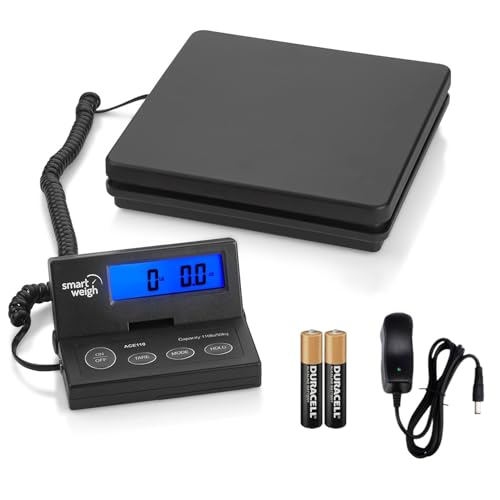
Remote-display package shipping scale option
Smart Weigh Digital Postal Shipping Scale, 110lb/50kg to 0.1oz/2g Precision, Hold Function, Separate Wall-Mount Screen, AC Adapter & Batteries Included
Best for: Sellers weighing boxed orders at a packing station where the package can cover a built-in display.
Avoid if: Skip if all orders use flat-rate packaging or a smaller scale already reads clearly with your normal boxes.
Confirm capacity, platform size, display placement, and power setup before buying.
Compare scales on Amazon4×6 thermal label printer
Use it when paper labels, cutting, taping, or reprints slow every batch. Skip it if you still print only a few labels a month or your current label format is wrong. Check platform compatibility, device support, connection type, and room for labels to feed.

Bluetooth 4×6 thermal label printer option
Bluetooth Thermal Shipping Label Printer: 4×6 Wireless Label Maker with Tape for Small Business – Compatible with iPhone, Android, Windows & Mac, Widely Used for USPS UPS Amazon Shopify Etsy
Best for: Sellers who want the label printer near the packing surface without relying only on a USB cable, after confirming their device and marketplace support the workflow.
Avoid if: Skip if a basic USB printer is enough or if mobile app, Bluetooth, marketplace, or operating-system support is uncertain.
Confirm 4×6 label format, marketplace settings, device compatibility, connection type, footprint, and replacement label availability before buying.
See label printers on AmazonFinal Checklist
- Pack one sample order before buying another tool.
- Keep the scale before the label printer in the workflow.
- Keep tape, cutter, and labels reachable without leaving the package.
- Separate finished orders from inventory and returns.
- Buy the next tool only when it removes a repeated stop.
Related Guides
- Shipping Station: Use this as the broader station workflow.
- Postal Scale Buying Guide: Use this when the scale is the next purchase.
- Thermal Label Printer Buying Guide: Use this before upgrading label hardware.